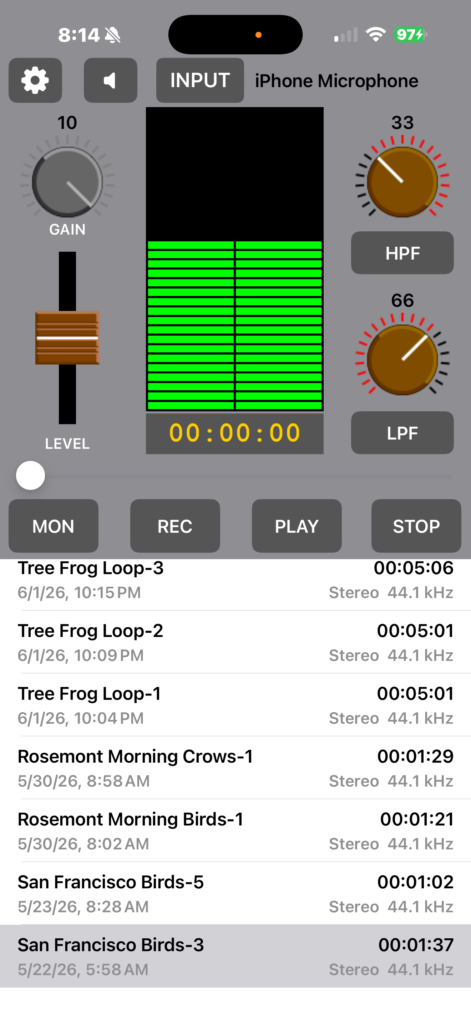
Rosemont Audio Recorder is an easy to use yet powerful audio recording tool that can be used for a variety of sound recording tasks, from capturing lectures and meetings to nature recordings to high-quality audio tracks for music production purposes.
Rosemont Audio Recorder features simple one-touch recording to start a new audio capture, but also advanced capabilities such as adjustable gain and Low Pass and High Pass filters to fine tune the audio quality for the environment.
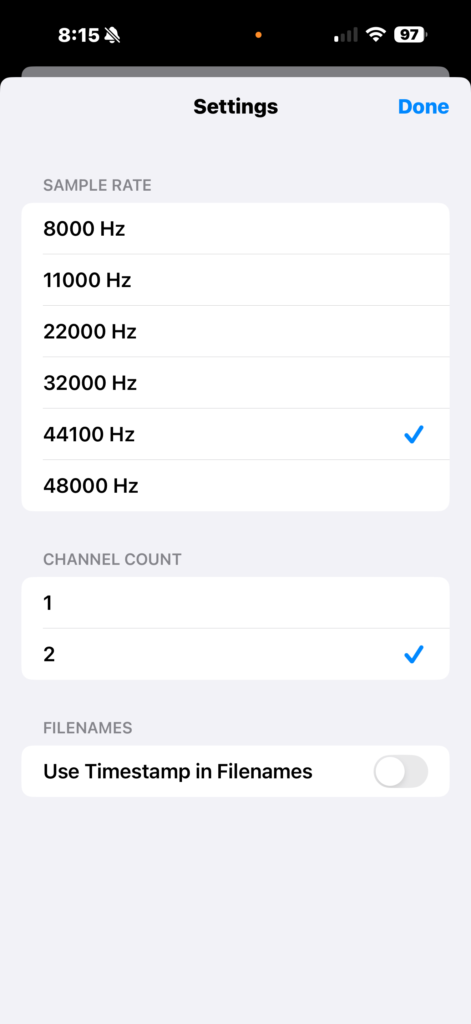
Rosemont Audio Recorder also enables the setting of Sample Rate from 8 kHz up to 48 kHz, and either stereo or mono format, to between small files of voice quality or larger high-fidelity files for music capture/production or other purposes. Recording time depends on the Sample Rate and Channels settings, at the standard settings of 44.1 kHz 2-channel format, you can record up to about 6.5 hours in a single file. Reducing the sample rate or number of channels can allow much longer recordings. For the longest recording times it is recommended to have the device plugged into a charger.
Rosemont Audio Recorder can capture audio from any audio source you can connect to the device – from the built in microphone, to plugged in or bluetooth headsets, to full USB Audio Interface inputs. For highest quality audio capture, use an external USB Audio Interface and set the Sample Rate to 48 kHz / 2 channels. The Sample Rate and other settings can be reached by tapping the Settings button (the “Gear” button in the upper left corner).
Usage Tips:
To start a recording, tap the “REC” button. The time counter will show the elapsed time of the recording. To stop the recording, tap the “STOP” button. Adjust the level slider to make the recorded sound louder or softer, trying to keep the audio level, as shown in the live VU meters, in the upper part of the green zone. If the VU meters go all the way up to the red bars, the sound may be distorted on playback. You can adjust the audio level before starting a recording.
To play back a recording, simply tap the recording in the list and then tap the “PLAY” button. If using the internal device microphone and speaker, the speaker will be automatically enabled during playback. You can also adjust the output level of the recording with the level slider. You can move the playback position slider during playback to jump to different parts of the recording.
If you are in a noisy environment such as an area with road traffic and you are trying to record voices or nature sounds, you can turn on the High Pass Filter with the “HPF” button, and then adjust the knob by dragging it up/down to reduce the low-frequency sounds. Similarly you can reduce high frequency noise by turning on the Low Pass Filter with the “LPF” button. Best results will be obtained by using headphones and turning on the Monitor function with the “MON” button and tuning the level and filter settings for best sound clarity. The “MON” button should generally not be turned on when using the built-in microphone as this will lead to audio feedback and echos.
The LPF and HPF buttons can also be engaged during playback for additional filtering.
If you plug in an alternative audio input, such as a USB Audio Interface, you can switch between inputs with the “INPUT” button and some inputs support adjusting the gain of the audio input if the sound is very quiet or the microphone has low output level. When gain can be adjusted, the knob will change color to indicate it can be adjusted. If gain is set to maximum with external audio interfaces, best results may be found by also turning on the Low Pass Filter to reduce microphone hiss.
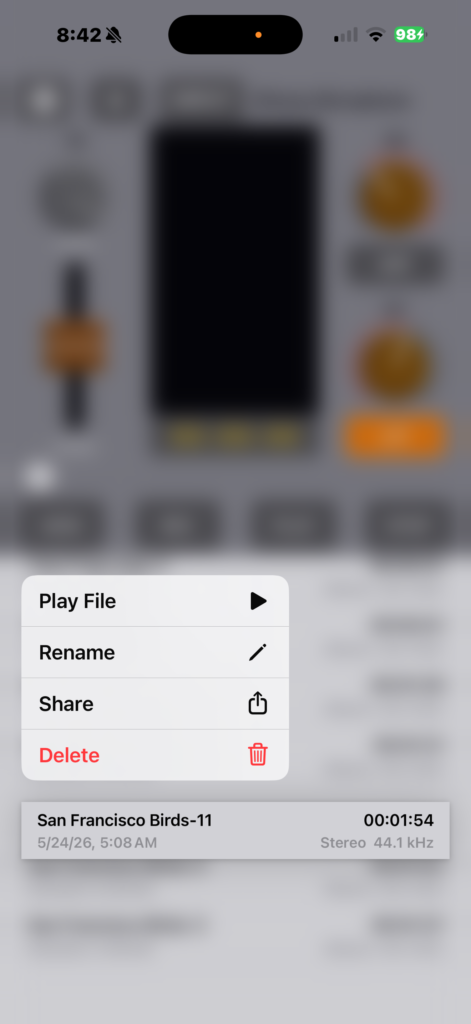
Recording files can be renamed, shared, or deleted by a long-touch on the file, a menu will pop up allowing these actions to be performed. The recording files can also be found in the iOS “Files” app in “On My iPhone” / “Rosemont Audio Recorder” / “Recordings” folder. The files are standard PCM WAV files, which can be shared to any system that can use this type of file, such as sound editors or Digital Audio Workstations.